Video Quizzes in E-Learning
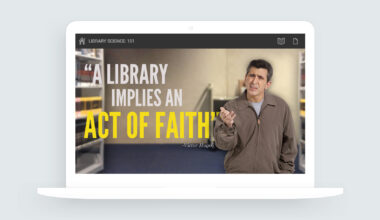
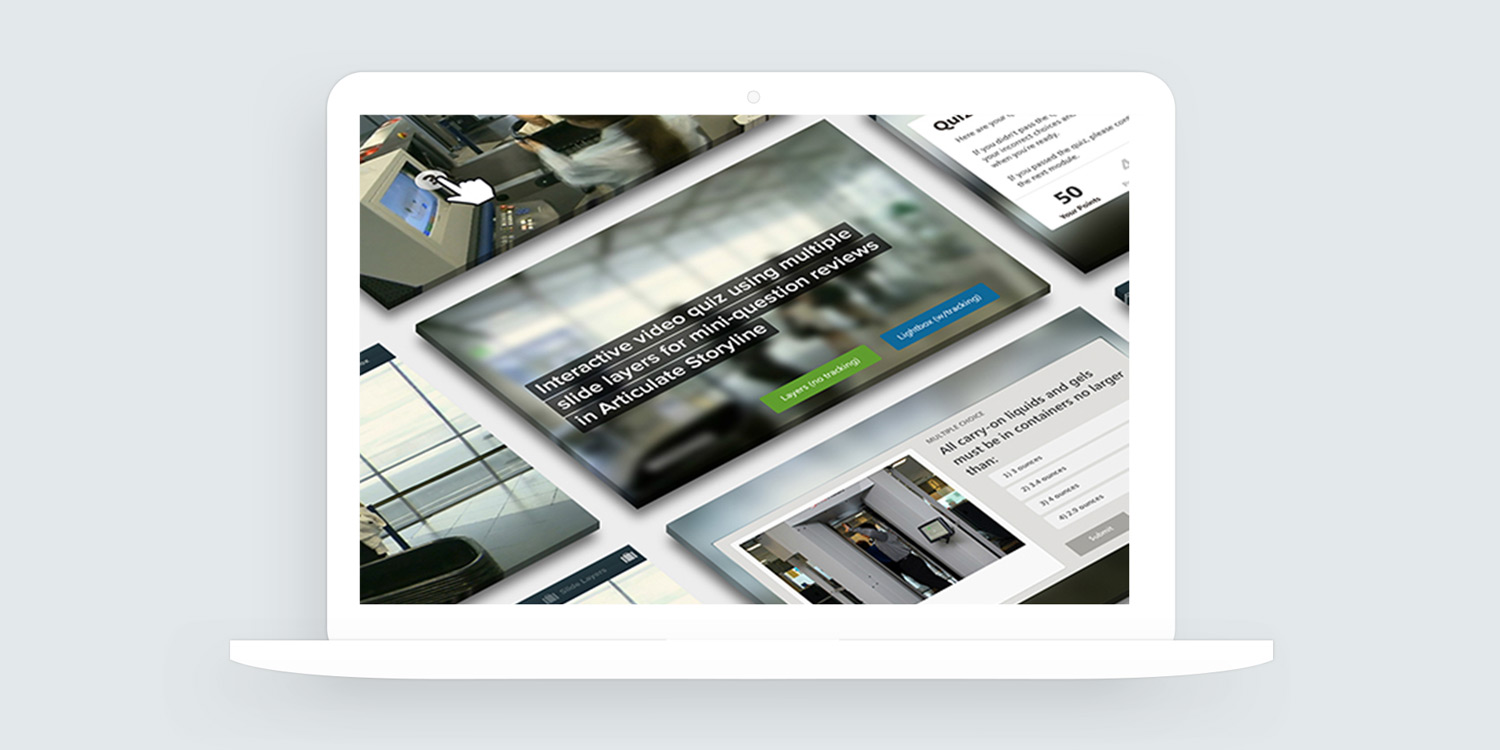
Here’s an example of an interactive video quiz designed with Articulate Storyline 360. Learners are presented with question promps at certain times during the video. Learners can choose to ignore or interact with the buttons.
Clicking the buttons exposes a quiz question or information window. When the learner completes the quiz question, they’re returned to the video.
Design Concept and Inspiration
There’s not a ton of design happening in this interactive video quiz. And that’s kind of the point. The video takes up the entire slide, so I wanted the rest of the visuals to match. Same tone. Same mood.
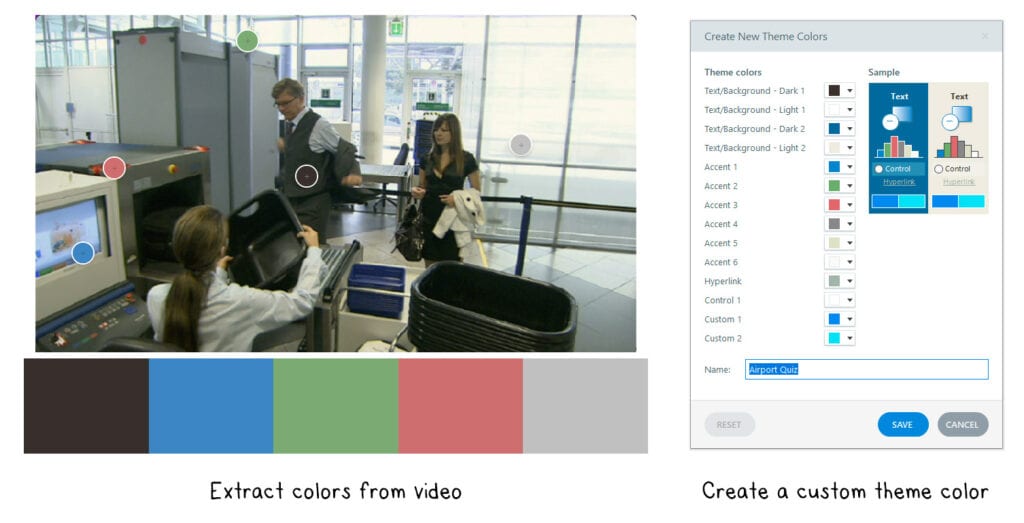
I grabbed a screenshot from the video. Dropped it into Adobe Color. Let it do its thing.
It pulled some solid color options based on the image. Not bad for the first try. I made a few tweaks. Nothing major. Just enough to dial things in a bit more.
From there, I headed into Storyline and built a custom theme color. That way, everything ties together. Simple move. But it makes the whole thing feel more intentional.
How Does Interactive Video Work in Storyline?
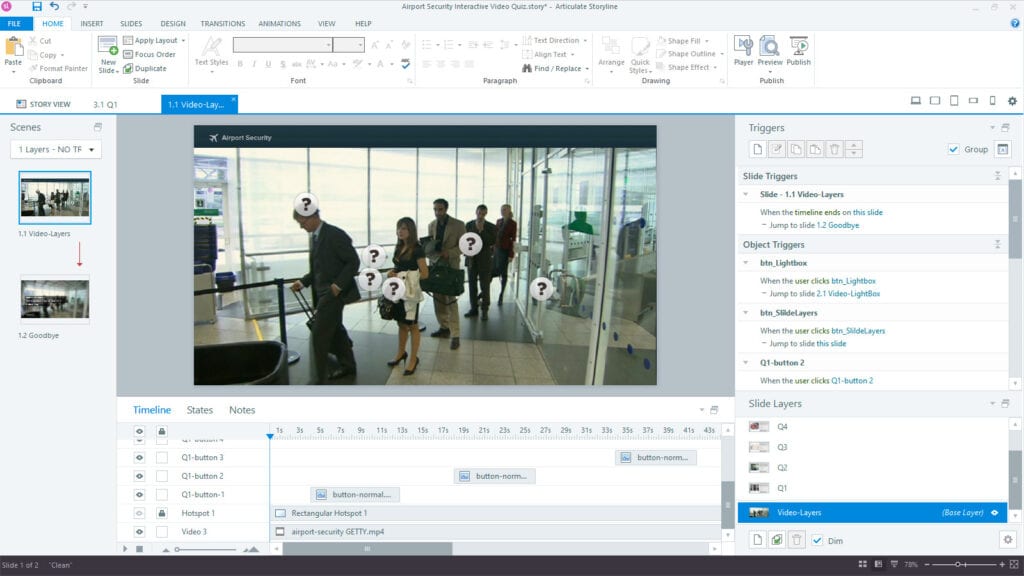
The big idea here is pretty simple. Interactive buttons are layered right on top of specific spots in the video.
They don’t hang around long. Just a quick pop-up that gives the learner a chance to dig deeper or explore more.
If they click, they’re taken to something extra. Could be a quiz. Maybe a short game or scenario. Sometimes it’s just a bit of supporting text. Depends on the content and what the learners need to be able to do.
Of course, they can also skip the video. If they’d rather keep watching, no problem. The video just keeps playing.
Creating Two Versions of the Quiz
There are two ways this video quiz interaction works. One uses a single slide. The other uses a lightbox approach.
In the single-slide version, everything happens on one screen. The question shows up, the answer choices appear, and the feedback is handled with slide layers.
The lightbox method works a little differently. It loads standard graded question slides over the video. Once the learner finishes the question, they’re brought right back to the video where they left off.
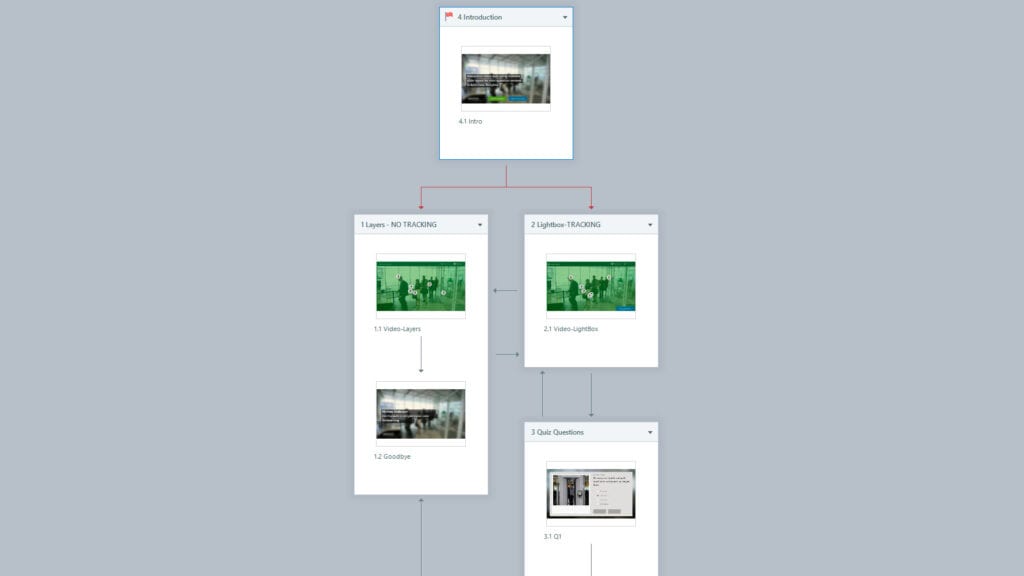
I like the single-slide approach because everything stays on one slide. It makes it really easy to copy and drop into other projects. Quick and clean.
The tradeoff?
You can’t easily track the questions since it’s not using the built-in graded slides.
On the other hand, the lightbox option is better when you need to track and grade how the learner is doing. It uses actual question slides, so the results can be reported.
That said, lightbox slides are usually best for optional content or quick performance support. They’re not ideal when tracking is a must, especially if you’re building something more formal like a scored assessment.
A Lot Has Changed Since Storyline 1.0
I first shared this video quiz example over in E-Learning Heroes not long after Storyline came out. Hard to believe that was nine years ago.
At the time, we were working with Storyline 1.0, which didn’t have the best support for vector objects. If you wanted to create something custom, you pretty much had to bring in graphics from apps like Photoshop.
Here’s a look at some of the elements I originally designed for that first version of the interaction.
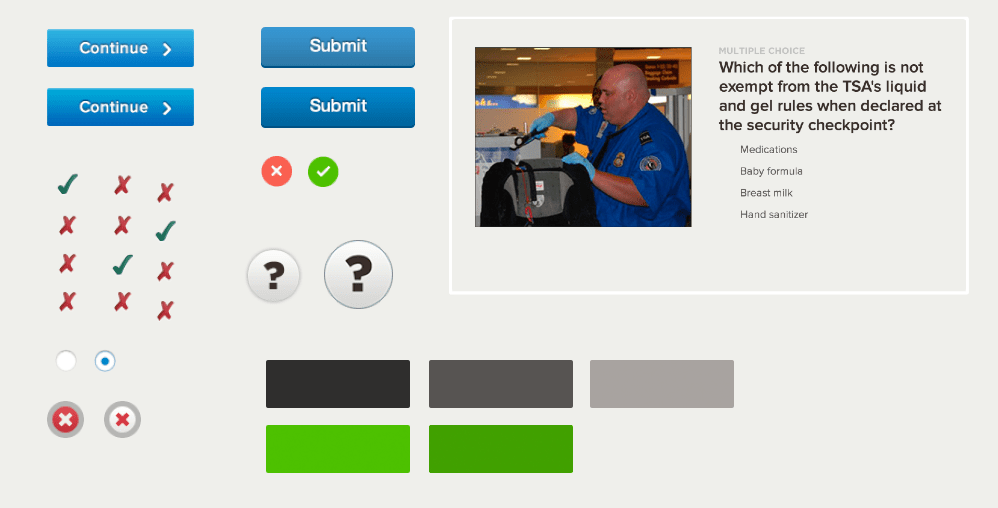
Even my question and choice elements were created as a flattened .png image. Today, I could build everything using Storyline’s vector shapes, text, and Content Library icons.
More Ideas for Working with Video in Storyline 360.
Storyline actually handles video really well. In a lot of ways, it works just like any other object on the slide.
You can stack things above it. Below it. Time objects to show up before or after the video. It’s all pretty flexible, which makes it easy to build layered, interactive designs without a lot of extra work.
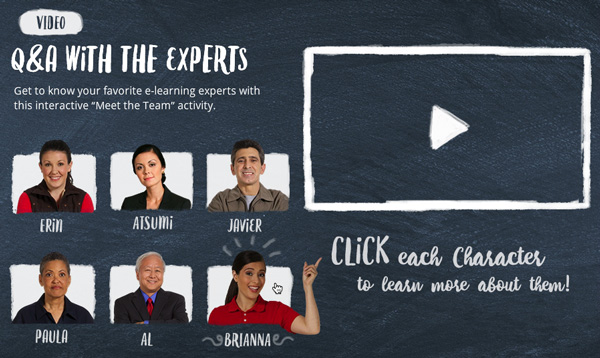
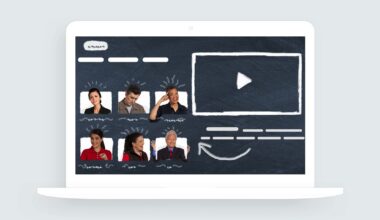
Here’s a video example I shared for interactive org charts and meet-the-team interactions. I had some fun with the hover effects.